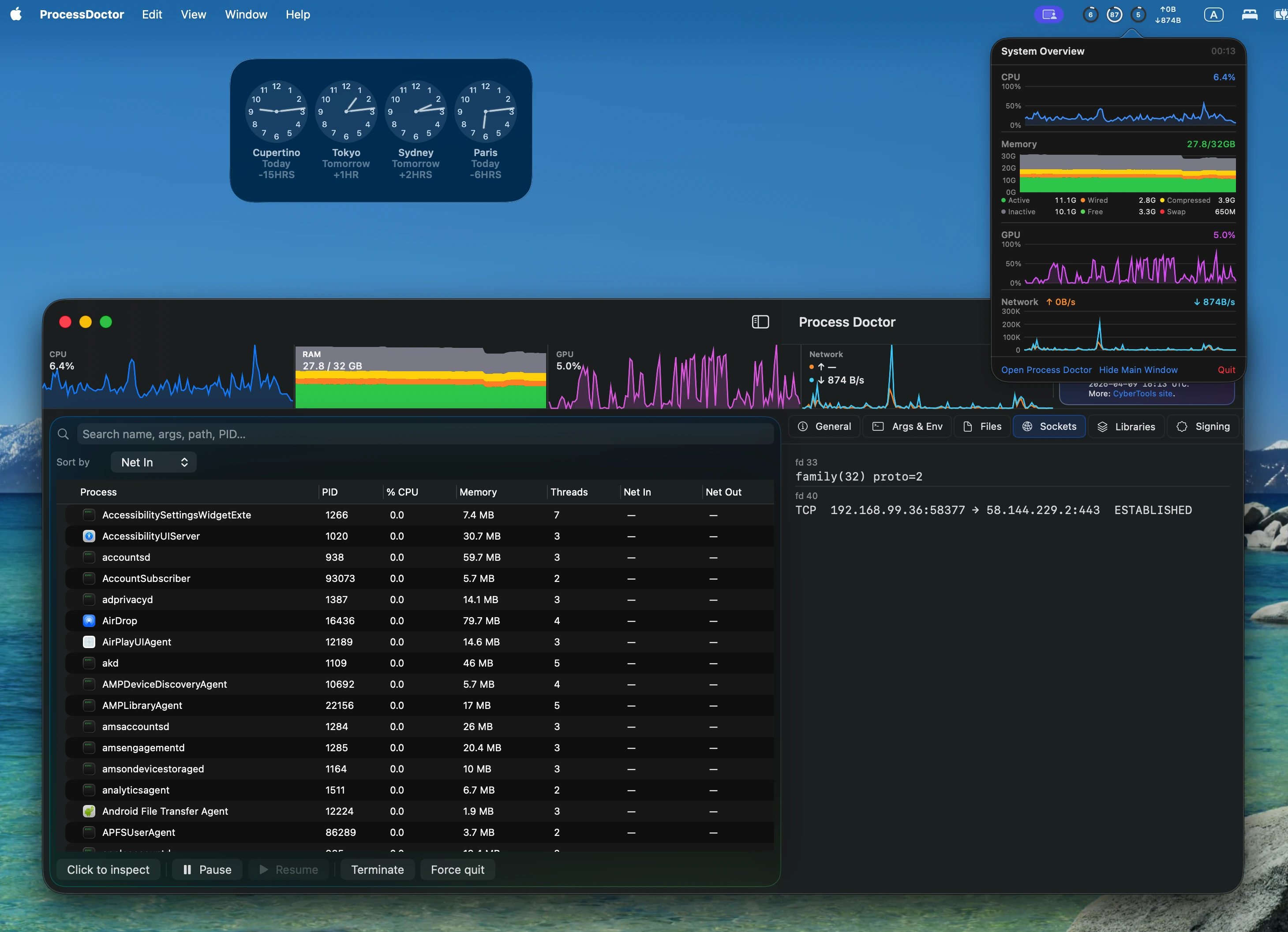
Everything below runs on your Mac using native APIs—no remote dashboard and no cloud process list.
📊
Live system overview
CPU, memory (including pressure-style breakdown), GPU utilization, and network throughput as sparkline charts
in the main window—always visible above the process list. Network uses the default-route interface when available;
otherwise rates are aggregated from processes.
⏱
Configurable sampling
Adjust refresh interval (down to half-second steps) and how many history samples to retain for charts and trends.
◧
Menu bar companion
Optional menu bar item with system charts and quick actions to open the app or hide the main window—ideal for always-on monitoring.
🌳
Tree, search & sort
Hierarchical outline with search across name, arguments, path, and PID. Sort by CPU, memory footprint, threads, network in/out, name, or PID.
Optional ancestor-aware filtering: show matches plus their parent chain.
🎯
Click to inspect
Pick a window under the cursor to jump to its process. Uses Accessibility when allowed; falls back to window geometry when not.
⚡
Process actions
Pause (SIGSTOP), resume (SIGCONT), terminate, or force quit selected processes—with confirmations where it matters.
🔗
Shortcuts automation
Fire Shortcuts when processes start or exit: JSON is copied to the clipboard and your shortcut is opened via the Shortcuts URL scheme.